01 — Features
One environment, from VHDL to the board
NexysVHDL is a focused educational workflow for one job: taking VHDL from an idea to a working design on the Nexys A7. It is not a replacement for every Vivado feature; it keeps just the steps a VHDL student needs, and keeps them close together.
Write VHDL
Plain VHDL, organized projects
- Normal VHDL source files, in VS Code
- Project hierarchy view
- Add File / Remove / Add Back
- Top-entity management
- Nexys A7 constraints (standard XDC)
Simulate visually
Run it and look at the signals
- Integrated simulation
- Waveform viewer
- Run for, Stop, Start Over
- Signal radix: binary, hex, unsigned and signed decimal
- Movable waveform time marker
Understand your hardware
Two schematics, two questions
- Design Schematic
- shows entities, instances and structural hierarchy.
- RTL Schematic
- shows synthesized registers, muxes, operators and logic.
- Fit All, zoom and pan
- Dark or light schematic background
- SVG and PNG export
Build the real FPGA
No Vivado required
- VHDL
- GHDL
- Open-source FPGA tools
- Bitstream
- Nexys A7
Build produces the FPGA configuration file and shows timing and resource use; one more click programs the board.
Student-friendly projects
Open it, close it, switch it — it remembers
.nvprojproject files; double-click one to open it (Windows installer)- New / Open / Close Project
- Switch projects without restarting by hand
- Persistent project state
- NexysVHDL Console for progress, results and errors
What’s underneath?
You never need to run these yourself; NexysVHDL drives them and shows the results. They are installed together as Toolchain 1.0.
- GHDL — VHDL analysis, simulation and synthesis front end
- Yosys — logic synthesis and the RTL schematic data
- nextpnr-xilinx with Project X-Ray / openXC7 — placement, routing and bitstream for the Artix-7
- openFPGALoader — programming on macOS
- Digilent programming support — programming on Windows
02 — Why NexysVHDL?
You already have the board
You already have the FPGA board. You shouldn’t need a massive FPGA installation just to learn VHDL.
- Focused on the Nexys A7. One board, one language, nothing to configure first.
- A much smaller, simpler workflow. VS Code, NexysVHDL and one toolchain package.
- Windows and Apple-silicon macOS. The same workflow on both.
- Simulation and implementation together. The same project goes from testbench to bitstream.
- Real hardware, not just simulation. Program the board and press the buttons.
- Schematics and waveforms that teach. See what your VHDL turned into.
03 — Install
Install NexysVHDL
You need four things: NexysVHDL 0.6.0, NexysVHDL Toolchain 1.0, VS Code, and a Nexys A7-100T with a USB cable. Choose your computer.
Windows 10/11 PC
Windows x64
Recommended: the NexysVHDL Windows Installer
APrepare your PC
- Install VS Code. Download Visual Studio Code from code.visualstudio.com. You need version 1.120 or newer (check with Help → About).
- Install Digilent USB/JTAG support. From Digilent’s Adept page, install both Digilent Adept Runtime and Digilent Adept Utilities. Not sure if you already have them? Skip this — the check below tells you if they are missing.
BInstall NexysVHDL
- Run the installer. Double-click
NexysVHDL-Setup-0.6.0-win32-x64.exe. It installs for your Windows account only (no administrator needed), adds the extension to VS Code and a Start Menu entry, and makes.nvprojproject files open with NexysVHDL.
CInstall the FPGA toolchain (once)
- Choose “Install FPGA Toolchain…”. In VS Code, click the NexysVHDL icon on the left, then Install FPGA Toolchain… — or press Ctrl+Shift+P and run NexysVHDL: Install FPGA Toolchain…
- Select the Toolchain 1.0 archive. Choose
nexysvhdl-toolchain-1.0-win32-x64.tar.gzand wait until it says it is installed (a minute or two). Do not unzip the file yourself. It is large (about 700 MB). If you already installed Toolchain 1.0 for an earlier NexysVHDL, it is reused — skip this step. - Check that the tools are Ready. Press Ctrl+Shift+P → NexysVHDL: Show Environment. You want to see:
- Bundled FPGA ToolchainReady — 1.0
- Digilent USB/JTAG SupportReady
Advanced alternative: install the VSIX
If you prefer to add the extension to VS Code by hand, use nexysvhdl-0.6.0-win32-x64.vsix instead of the installer: open the Extensions view (Ctrl+Shift+X), click … → Install from VSIX… and choose it. Get it from the release folder (opens Google Drive in a new tab; choose nexysvhdl-0.6.0-win32-x64.vsix)
The VSIX installs only the extension. A fresh PC still needs the matching Toolchain 1.0 (step 4–5), and you do not get the Start Menu entry or .nvproj double-click.
Apart from VS Code and Digilent’s Adept software, you do not install anything else — no Vivado, GHDL, Yosys, nextpnr or Python.
Mac with M1 or newer
macOS · Apple silicon
Recommended: the NexysVHDL disk image (DMG)
Current macOS release: Apple silicon only (M1 or newer). Intel Macs are not supported.
APrepare your Mac
- Install VS Code. Download Visual Studio Code from code.visualstudio.com (Apple silicon or Universal) and move it to Applications. You need version 1.120 or newer (Code → About Visual Studio Code).
BInstall NexysVHDL
- Open the DMG. Double-click
NexysVHDL-0.6.0-darwin-arm64.dmgand follow the window that opens. - First launch. The macOS 0.6.0 builds are not yet notarized by Apple, so macOS may block the first launch. This is expected. Open System Settings → Privacy & Security, scroll to the message about NexysVHDL, and click Open Anyway.
CInstall the FPGA toolchain (once)
- Choose “Install FPGA Toolchain…”. In VS Code, click the NexysVHDL icon on the left, then Install FPGA Toolchain… — or press ⇧⌘P and run NexysVHDL: Install FPGA Toolchain…
- Select Toolchain 1.0. Choose
nexysvhdl-toolchain-1.0-darwin-arm64.tar.gzand wait until it says it is installed (about a minute). If macOS asks whether VS Code may access your Documents, Desktop or Downloads folder, click Allow. Do not double-click or unzip the.tar.gz. A toolchain unpacked by hand does not work. - Check that the toolchain is Ready. Press ⇧⌘P → NexysVHDL: Show Environment. You want to see:
- Bundled FPGA ToolchainReady — 1.0
Advanced alternative: install the VSIX
Instead of the DMG you can add the extension to VS Code by hand with nexysvhdl-0.6.0-darwin-arm64.vsix: open the Extensions view (⇧⌘X), click … → Install from VSIX… and choose it. Get it from the release folder (opens Google Drive in a new tab; choose nexysvhdl-0.6.0-darwin-arm64.vsix)
The VSIX installs only the extension. A fresh Mac still needs nexysvhdl-toolchain-1.0-darwin-arm64.tar.gz (steps 4–5).
You do not need to install anything else. In particular, not:
- Vivado
- Node
- Python
- Git
- Homebrew
- GHDL separately
- Yosys separately
- nextpnr separately
The programmer for the board is part of Toolchain 1.0, so there is no driver to install either.
Google Drive may ask you to sign in before downloading. Every download button opens the shared NexysVHDL release folder in a new tab and names the file to choose. The folder holds the files for both computers, so download only those named on your card. The toolchain archive is large (about 700 MB on Windows, 650 MB on macOS).
04 — First use
Your first design, in seven steps
- Create or open a projectNew Project, or open
Board_Test. - Add your VHDLSource in
src/, testbench insim/. - CheckCatch VHDL errors.
- SimulateInspect the waveform.
- BuildGenerate the FPGA bitstream.
- Connect your Nexys A7USB to PROG/UART, switch ON.
- ProgramTest the design on real hardware.
On your computer, no board neededNeeds the board connected
05 — At a glance
NexysVHDL 0.6.0 at a glance
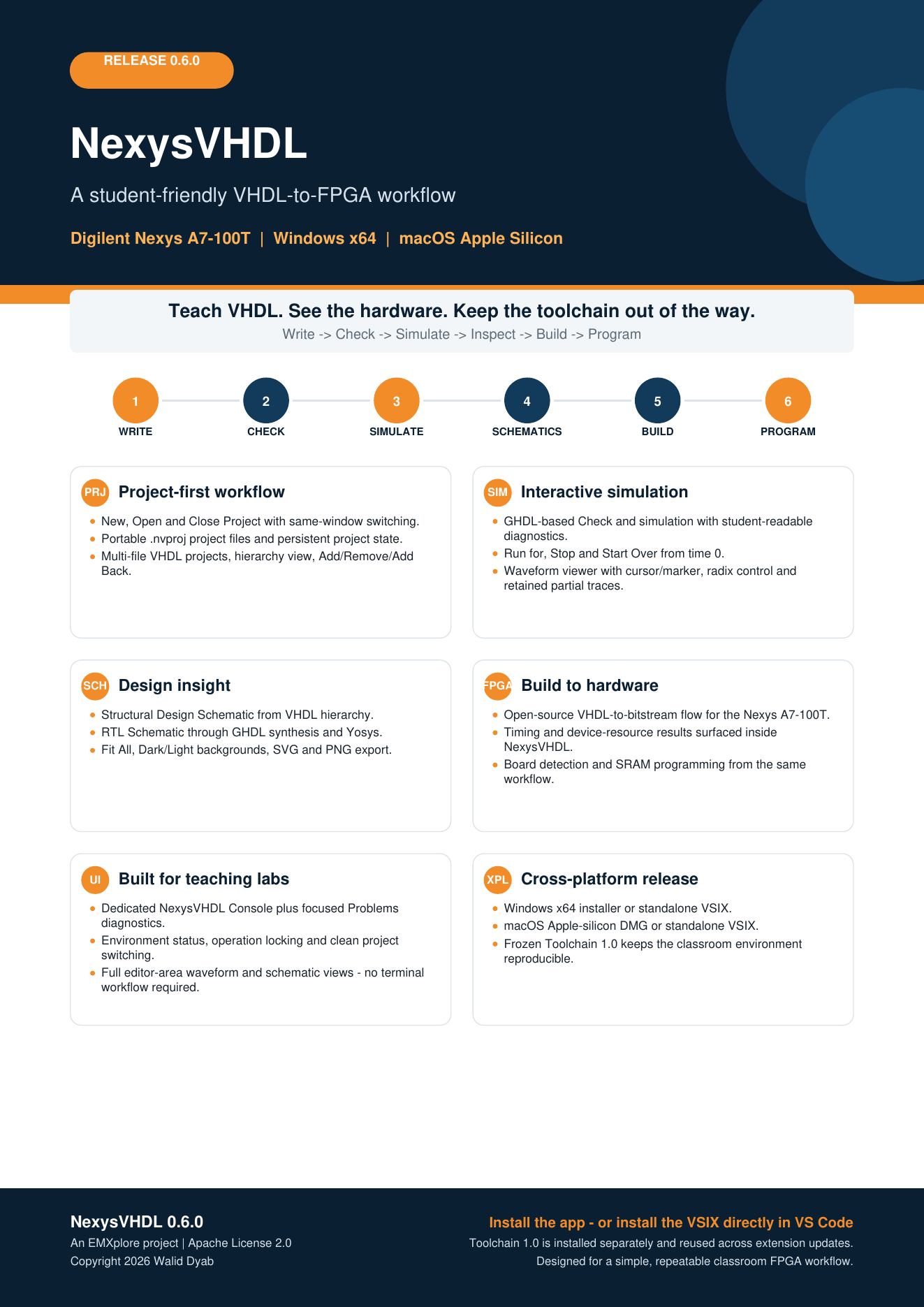
One page with the whole workflow and the six main feature areas. Print it, or keep it next to your board.
06 — Requirements
Compatibility
- Board
- Digilent Nexys A7-100T
- HDL
- VHDL
- Windows
- Windows x64
- macOS
- Apple silicon
- Editor
- Visual Studio Code
- NexysVHDL
- 0.6.0
- Toolchain
- 1.0
- Vivado
- Not required for the NexysVHDL workflow
Windows programming also uses Digilent’s free Adept software (see the Windows install steps). Intel Macs and Linux are not supported.
07 — Test your installation
Run Board_Test on the Nexys A7
After installation, open the small Board_Test project and run:
- Check
- Simulate
- Build
- Program
Then verify on the board
- SW0 = 0LED0 off
- SW0 = 1LED0 blinks
- BTNCRestarts the blink sequence
Unzip it into Documents, then open the Board_Test folder in VS Code (File → Open Folder…), or use Open Project in NexysVHDL. When asked “Do you trust the authors…?”, choose Yes, I trust the authors. Plug the USB cable into the PROG/UART port and switch the board ON before you program.
08 — Troubleshooting
If something does not work
Buttons are greyed out / “Restricted Mode”
NexysVHDL only works in a trusted folder. Click Restricted Mode at the bottom-left of VS Code → Trust. When VS Code asks whether you trust the authors of the project folder, answer yes.
“FPGA toolchain not installed”
Open the NexysVHDL panel → Install FPGA Toolchain… and select the Toolchain 1.0 .tar.gz for your computer: …-win32-x64 on Windows, …-darwin-arm64 on a Mac.
No Nexys A7 detected
Use the PROG/UART USB port, switch the board ON, try another cable. Then Hardware → Detect Boards. If Show Environment says Digilent USB/JTAG Support — Setup Required, install Digilent Adept Runtime and Adept Utilities, then run Show Environment again.
No Nexys A7 detected
Use the PROG/UART USB port, switch the board ON, try another cable or USB port (some cables only charge). Then Hardware → Detect Boards. The programmer is bundled — there is no driver to install.
macOS says NexysVHDL “cannot be opened”
The 0.6.0 builds are not yet notarized. Open System Settings → Privacy & Security and click Open Anyway next to the NexysVHDL message.
You unzipped the toolchain
Delete any folder that was unpacked from the .tar.gz. Install the toolchain only with NexysVHDL: Install FPGA Toolchain… — a toolchain extracted by hand does not work.
Still stuck? Ask your instructor, and bring a screenshot of Show Environment.
09 — Licenses, notices and sources
Licenses & sources
NexysVHDL is licensed under the Apache License 2.0. Copyright 2026 Walid Dyab. NexysVHDL is an EMXplore project.
The FPGA Toolchain 1.0 contains third-party open-source components, such as GHDL, Yosys, nextpnr-xilinx and openFPGALoader. Each keeps its own license — including the GNU GPL and LGPL — and is not covered by the Apache License.
- LICENSEApache License 2.0
- NOTICENexysVHDL copyright and attribution
- THIRD_PARTY_NOTICES.mdThird-party components and their licenses
- NexysVHDL-Toolchain-1.0-Sources.zip (opens the Google Drive folder in a new tab)Corresponding source for Toolchain 1.0. Opens the release folder on Google Drive — choose
NexysVHDL-Toolchain-1.0-Sources.zip.